

If the event type has a payment app enabled, Discover always uses the payment app’s price instead of a listed price.
Add a price when you publish
1
Open your links
Go to Links in the sidebar and hover over the event type you want to list.
2
Click Publish on Discover
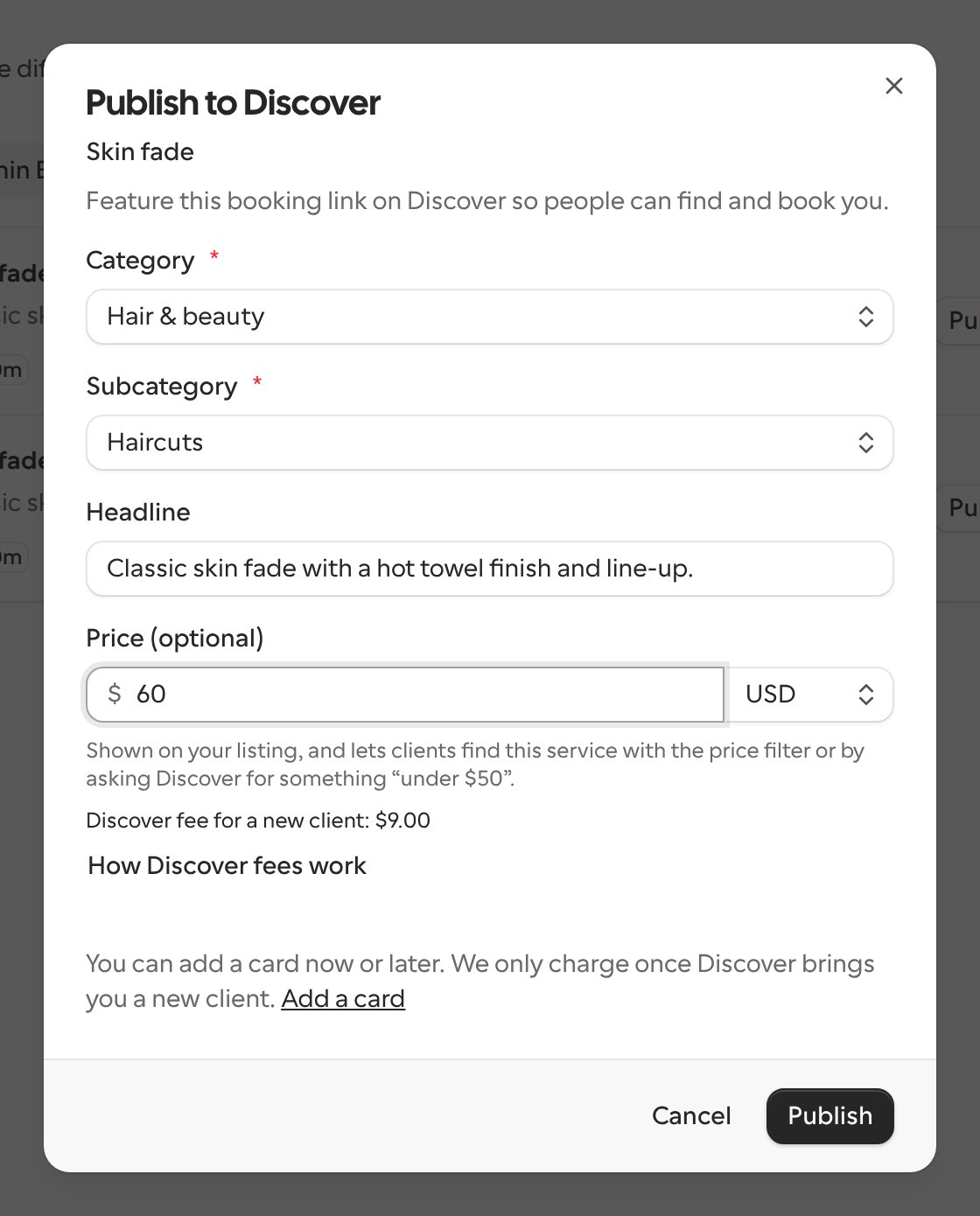
The Publish to Discover dialog opens with your listing details.
3
Enter a price
Type the amount in Price (optional), for example
60 or 59.99, and check the currency next to it. Leave the amount empty if you don’t want to show a price.4
Publish
Click Publish. The price is saved before your listing goes live.
Choose the currency
Pick the price’s currency from the currency picker next to the amount. It lists the same currencies you can charge in with a payment app. The currency symbol and the Discover fee shown under the field follow the currency you pick. The picker starts on:- The currency of the service’s existing listed price, if it has one (for example, one kept from a business import).
- Otherwise, the event type’s currency.
- US dollars if the event type has no currency set, or if it uses Bitcoin.
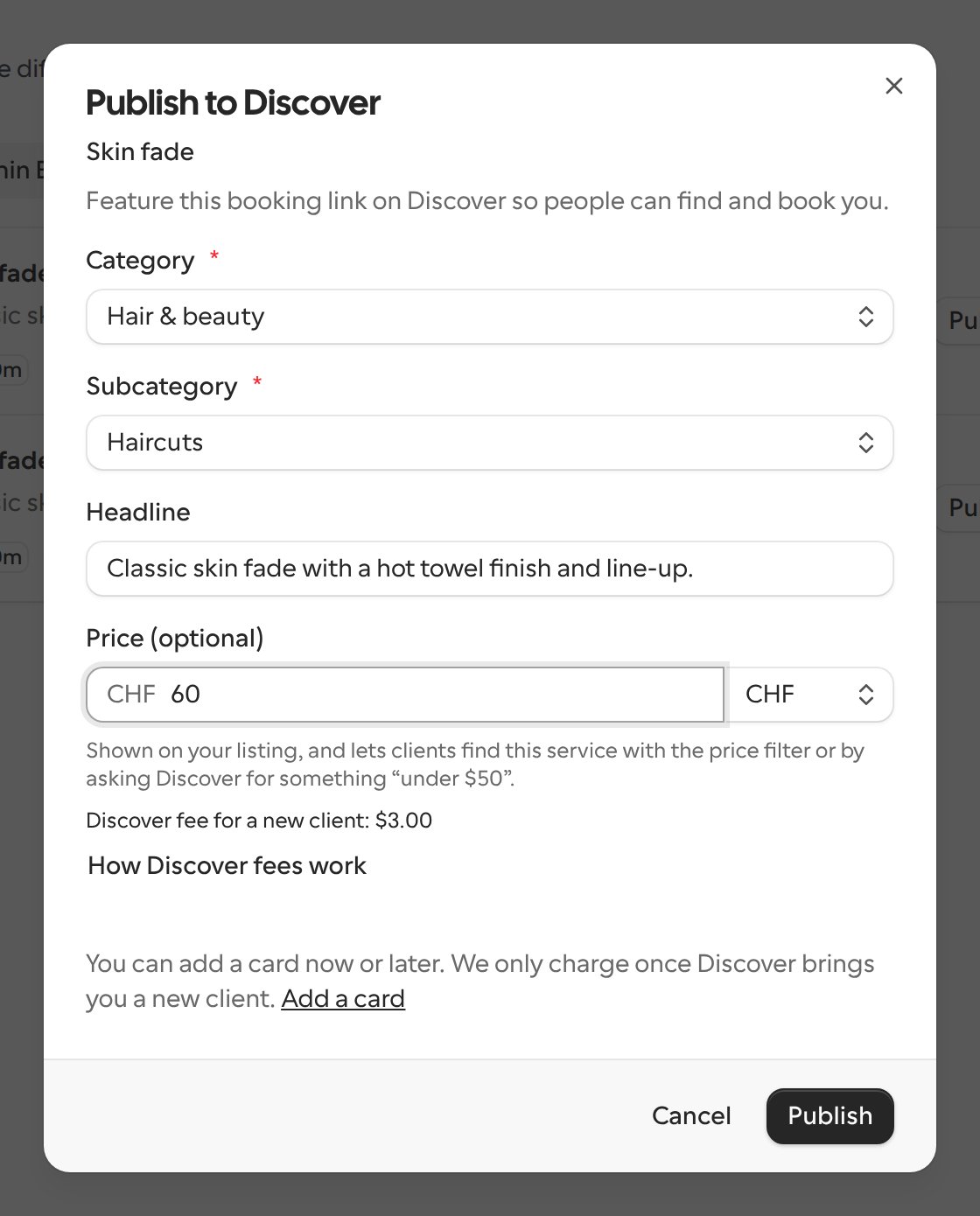
60 in US dollars and you pick Swiss francs, publishing saves CHF 60. Use this to correct a listed price that was saved in the wrong currency.
When you open the dialog again, the field shows the price you saved. Change it and publish to update the price, or clear the field and publish to remove it.
Valid prices
- Enter a whole amount or an amount with up to two decimal places, such as
60or59.99. - The amount must be more than 0 and no more than 100,000 in the currency you picked.
- In a currency without cents, such as Japanese yen, enter a whole amount.
1500.50in yen is not valid and is not rounded. - A zero, negative, or malformed amount (such as
45-60) is not treated as free. The dialog shows “Enter a price like 60 or 59.99, or leave it empty.” and Publish stays disabled until you fix or clear it.
With a payment app enabled
If the event type has a payment app enabled, the dialog doesn’t ask for a price. It shows the payment app’s price instead, and Discover displays that price and works out its fee from it. Publishing leaves any listed price you saved earlier unchanged.How the price is used
Discover uses the first of these that applies to the event type:
Apart from free services, the fee is always between $3 and $30 and is charged in US dollars. A service priced in another currency is charged the $3 minimum. Repeat bookings are free, and your clients never pay a fee.
For example, a service with a $60 listed price that a new client books through Discover is charged a $9 fee, the same as a $60 service paid through a payment app.
The price shown on Discover also counts toward the What services cost in table on the landing page of your service’s city. See Prices and next openings.
The Discover home’s featured rows and Top rated section only show services with a price, so a service without a payment app needs a listed price to appear there. Without one, it still shows on category and city pages. See Which services the home shows.
A service Cal.com published to Discover for you charges no fee until you accept the Discover fee terms. See Services listed for you.