Private links give you additional URLs for the same Link without including your Cal.com username in the URL. Create separate URLs for invite-only sessions, a pilot program or a limited-time offer, each with its own expiration rule. Anyone with a private URL can use it while it is valid. Share it only with the intended invitees. Creating a private URL does not hide the original Link or disable its standard booking URL.
  1. Go to Links and open the Link you want to update.
  2. Select Privacy & security and find Private links.
  3. Turn on Private links to generate the first URL. It allows one booking by default. Use Add new link to create more URLs for the same Link.
  4. Click the gear icon beside a URL to open Link settings.
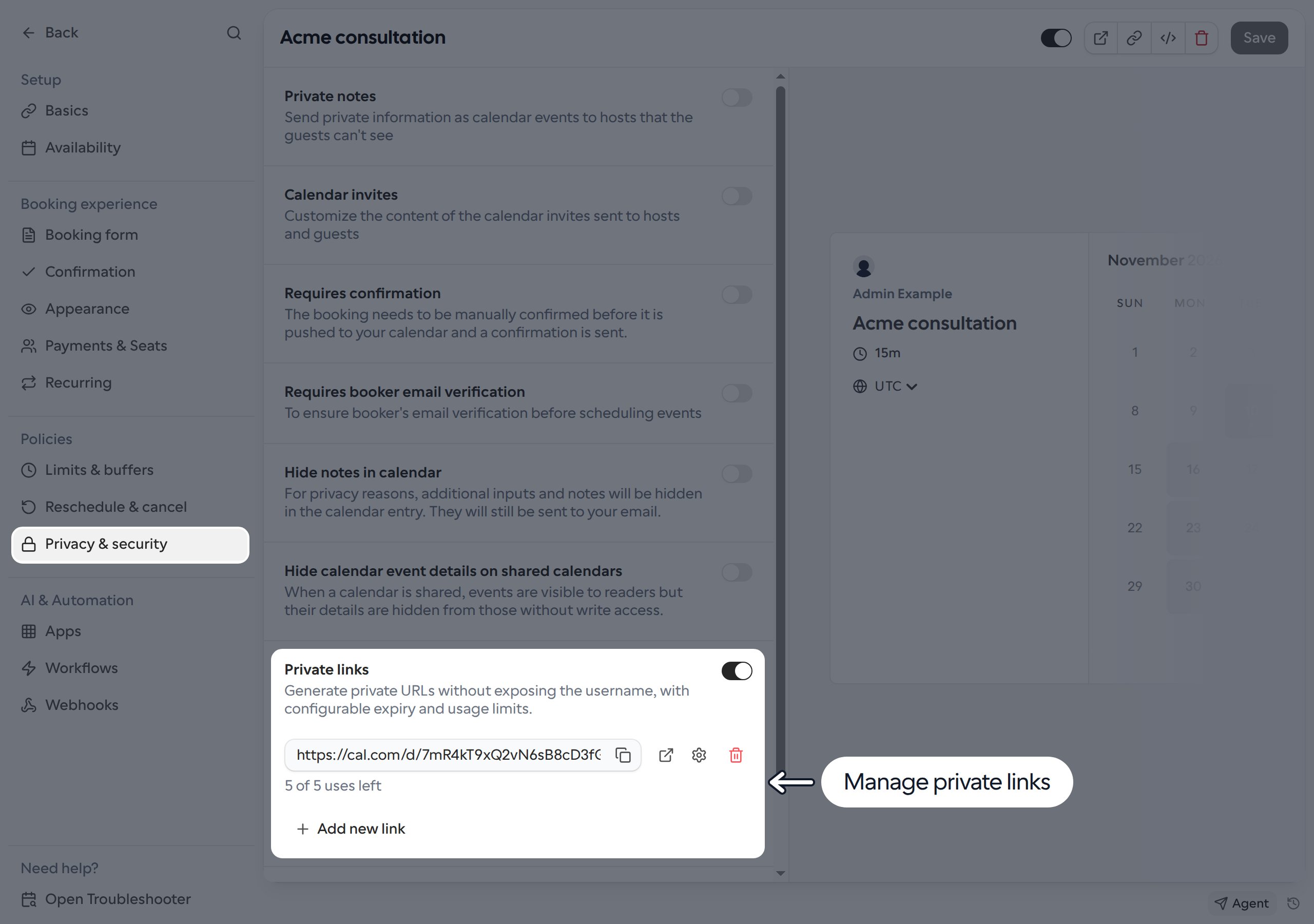
Privacy & security with Private links enabled, a synthetic private URL and the gear icon for its settings
  1. Choose one expiration rule:
    • Usage-based expiration: enter the total number of bookings allowed, starting at 1. For example, 5 allows five bookings through that private URL, not five page visits.
    • Time-based expiration: choose a date. The URL remains valid through the end of the selected date in UTC.
  2. Click Save in the dialog, then Save on the Link to apply the expiration changes.
  3. Use the copy icon beside the URL and share it with your invitees. The preview icon opens the booking page in a new tab.
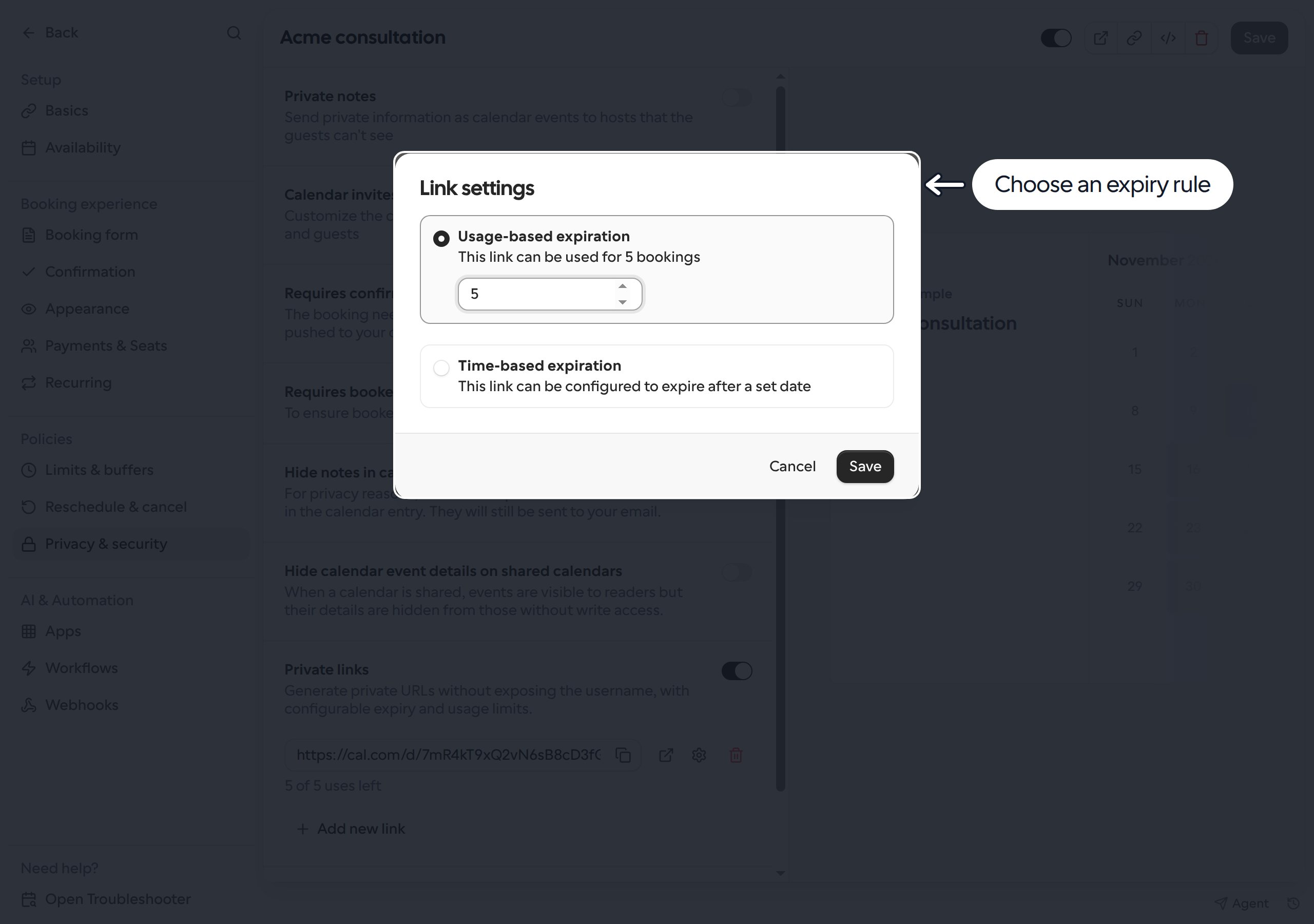
Link settings with Usage-based expiration selected and a limit of 5 bookings, plus the alternative Time-based expiration option
Creating and deleting private URLs takes effect immediately. You do not need to save the Link first to use a newly generated URL with its default one-booking limit. Save any custom expiration settings before sharing it. A private URL stops working when its usage limit is reached or its expiration date passes. Opening an expired or deleted URL shows a not-found page. The settings list marks expired URLs as Expired and no longer offers copying, previewing or editing them. You can create a new URL with Add new link. Use the trash icon to delete a URL. Deleting an active URL asks for confirmation and immediately stops future bookings through it. Turning off Private links removes all of the Link’s private URLs, with confirmation if any are still active. These actions cannot be undone. If a managed Link or template locks this setting, ask your administrator to change it.