











Scheduling
Recurring events
Book a series in one go.
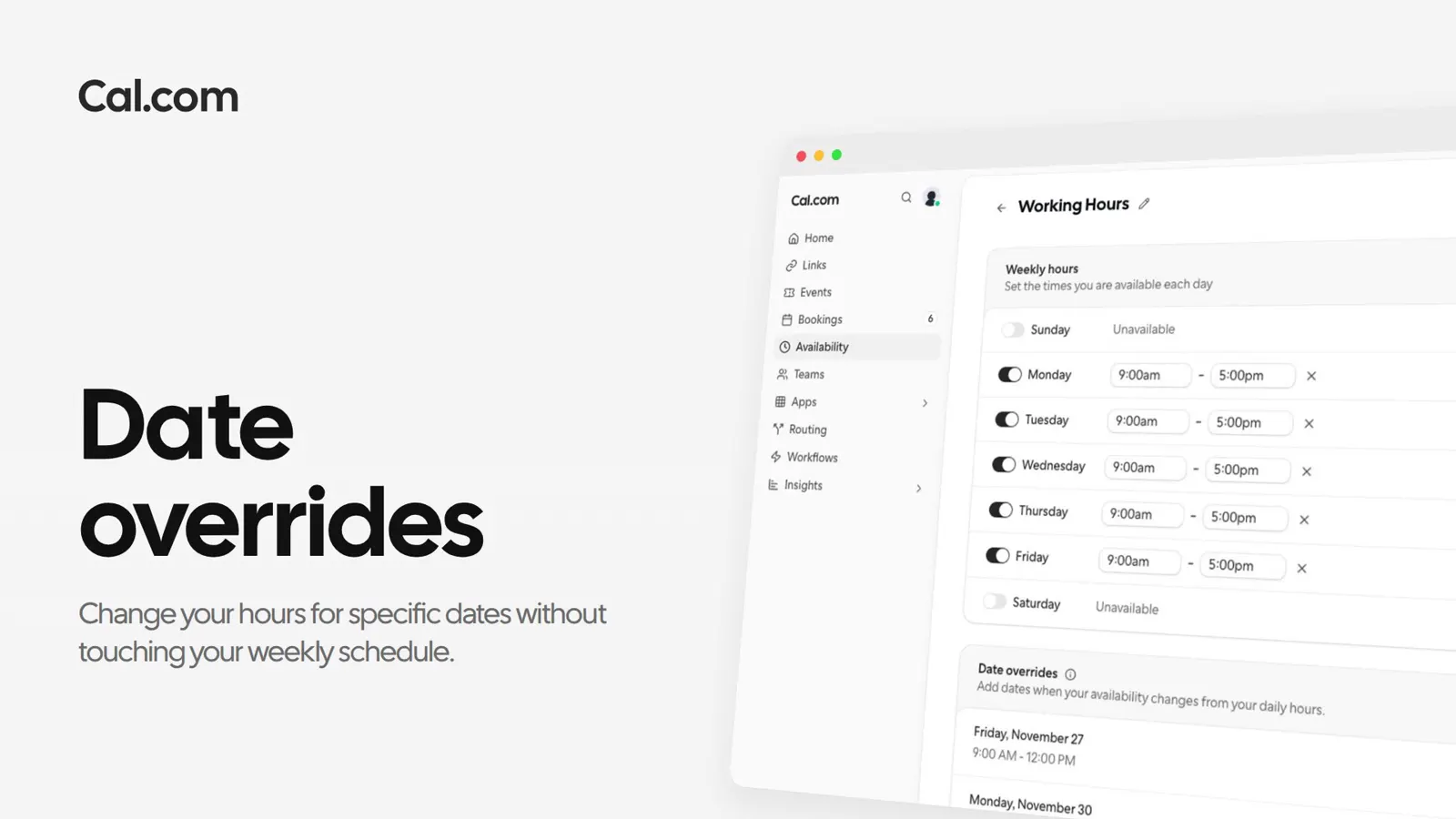
Keep your weekly hours and change single dates. Finish early on a Friday or take a Thursday off, and your booking page shows the new hours for those days only.
Trusted by fast-growing companies around the world




Ida Lund works 09:00 to 17:00 on weekdays. Follow two dates in her November from her schedule to the booking page Reilly Barry opens.
Ida's Working hours schedule runs Monday to Friday, 09:00 to 17:00. Under it, she clicks Add an override.
She picks Friday 20 November and moves the end time to 12:00. For that date, those hours replace her weekly ones.
For Thursday 26 November she turns on Mark unavailable (All day). Nobody can book her that day.
Both dates sit under Date overrides with their hours, ready to edit or delete. Once a date has passed, its override is archived on its own.
On Ida's booking page the 26th is greyed out and Friday the 20th offers times up to 11:30 only. Every other day keeps its 09:00 to 17:00.
Tell Cal.ai the day and the hours. It checks what's already booked and shows you the override before it saves.
A short recording of a schedule getting two date overrides, in the same steps as above.
In this video
Each one works the same way: set it up once on a link, or ask Cal.ai to do it for you.
Set your weekly hours once and override the dates that don't fit.
Get startedTalk to sales